![branding-blue-tagline.svg]](https://info.vueops.com/hubfs/Imported%20images/branding-blue-tagline.svg)
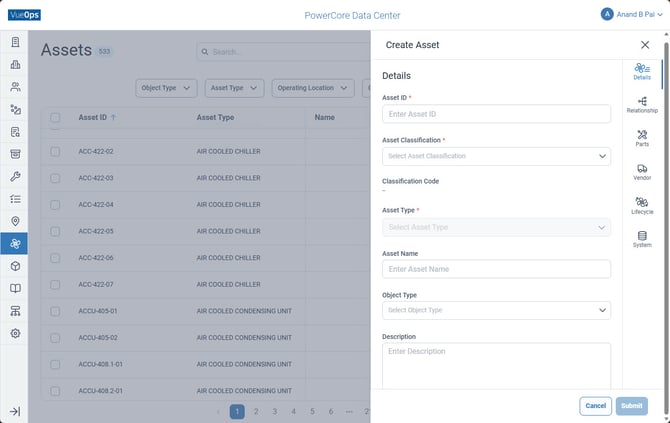
The 'Create Assets' function on VueOps which allows users to create new assets by filling in the requisite attributes.
To create a new asset:
-
From the sidebar, select Assets to open the Assets module.
-
Click Create Asset in the top-right area.
-
Fill in the required fields (marked with *): Asset ID, Asset Classification, Asset Type.
-
Complete additional details across the form tabs as needed.
-
Click Submit to create the asset.
The Create Asset form has 6 tabs:
1. Details Tab
Core identification and properties:
-
Asset ID* (unique identifier)
-
Asset Classification* and Classification Code
-
Asset Type* and Asset Name
-
Object Type (Asset, Component, Part, Meter)
-
Description
-
Operational Status and Asset Criticality
-
Asset Discipline and Asset Category
-
Drawing Tag, Manufacturer, Model Number, Serial Number, Barcode
-
Asset Health and Notes
-
GUID, Model Name (ID), BIM Model ID, Project Name (ID)
-
Operating Location
2. Relationship Tab
Define where this asset sits in the hierarchy:
-
Parent (select parent asset)
-
Area Serving (areas/zones this asset serves)
3. Parts Tab
Associate parts with this asset for inventory tracking and maintenance planning.
4. Vendor Tab
Link vendor contacts to this asset for warranty and service support.
5. Lifecycle Tab
Financial and lifecycle tracking:
-
Inventory Count, Unit Cost
-
Purchase Date, Purchase Cost
-
Installation Date, Installation Cost
-
Other Acquisition Cost, Disposal Cost
-
Useful Life (with configurable units)
-
Residual Value
-
Projected Replacement Date, Replacement Cost
-
Warranty Start Date, Warranty End Date
-
Depreciation Method (select method)
-
Calculated fields: Annual Depreciation, Monthly Depreciation, Accumulated Depreciation, Current Book Value, Expected Net Residual Value
6. System Tab
Associate the asset with a facility system:
-
System ID, System Name
-
System Discipline, System Classification
-
System Type, System Abbreviation
-
Add New System (create inline)
Import Assets
For bulk operations, use the Import button to upload multiple assets at once from a spreadsheet or data file. This is useful during initial facility setup or when onboarding data from another system.
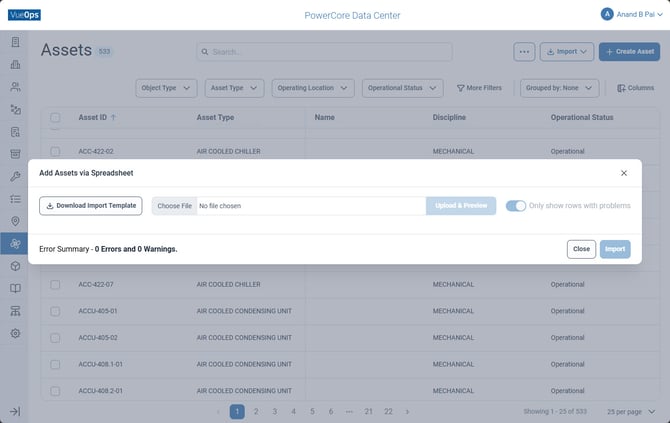
The bulk asset import feature which also includes a downloadable preset template that can quickly be populated and reimported.