![branding-blue-tagline.svg]](https://info.vueops.com/hubfs/Imported%20images/branding-blue-tagline.svg)
When to Use Sub-Work Orders
Sub-work orders are useful for large or complex tasks that need to be distributed across multiple assets or locations. For example:
Multiple assets need the same maintenance: Your facility has several chillers that all require quarterly inspection. You can create a sub-work order for each chiller and track the overall effort from the parent.
Location-based work: You need to perform safety inspections across multiple rooms or floors. Create a sub-work order for each location.
Complex projects with subtasks: A large equipment overhaul requires electrical, mechanical, and plumbing work. Create a sub-work order for each discipline.
Creating Sub-Work Orders
VueOps provides three methods to add sub-work orders, accessible from the "Add New" button in the Sub-Work Orders tab: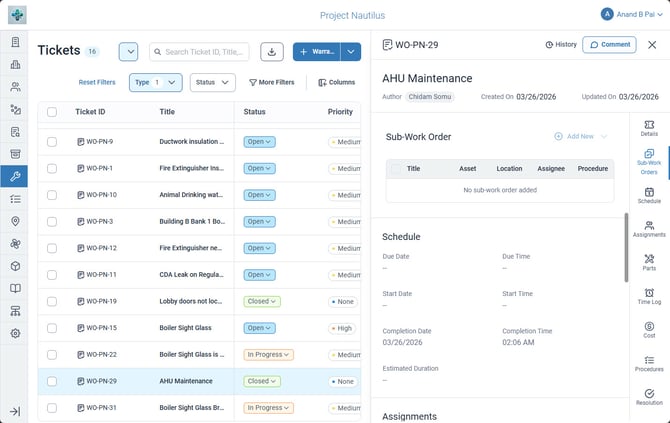
The Sub-Work Orders tab with the Add New button for creating sub-work orders.
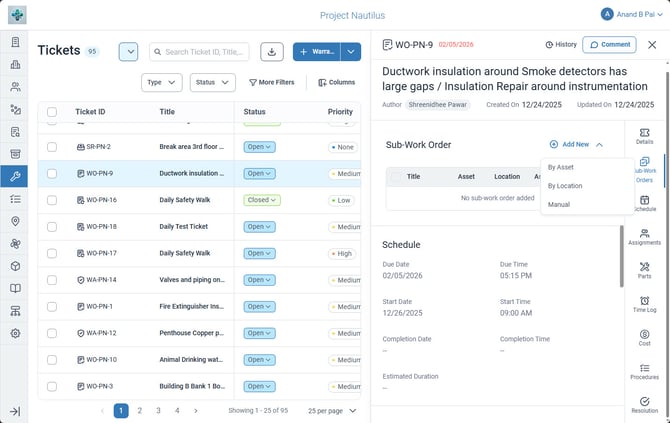
The three sub-work order creation options: By Asset, By Location, and Manual.
-
By Asset - Select one or more assets from your facility's asset list. VueOps creates a sub-work order for each selected asset automatically. This is ideal for line-based maintenance or when multiple instances of the same equipment need the same work.
- By Location - Select one or more locations from your facility's location tree. VueOps creates a sub-work order for each selected location. This is useful for area-based inspections or cleaning schedules.
- Manual - Add individual sub-work orders one at a time with custom titles. This gives you full flexibility for tasks that don't align to specific assets or locations.
💡 TIP: Use the By Asset or By Location methods to create sub-work orders in bulk. This saves significant time compared to creating individual work orders for each asset or location. You can then attach procedures, assign users, and set priorities for each sub-work order.
Sub-Work Order Fields
Each sub-work order includes the following fields, visible in the Sub-Work Orders table:
-
Title - The name of the sub-work order.
-
Asset - The asset associated with this sub-work order.
-
Location - The location associated with this sub-work order.
-
Assignee - The user responsible for this sub-work order.
-
Procedure - The procedure attached to this sub-work order.
Benefits of Sub-Work Orders
-
Create work orders in bulk for multiple assets or locations with a single action.
-
Attach procedures and assignees to each sub-work order individually.
-
Track overall progress from the parent work order.
-
Save time by avoiding repetitive individual work order creation.
-
Maintain a clear parent-child relationship for complex work.
Tracking Progress
The parent work order provides an overview of all sub-work orders and their statuses. As you complete sub-work orders, the parent work order reflects the overall progress. The parent work order is considered done when all sub-work orders are complete and you set the parent's status to Done.