![branding-blue-tagline.svg]](https://info.vueops.com/hubfs/Imported%20images/branding-blue-tagline.svg)
Work Order Views
Use the View dropdown at the top-left of the Tickets page to switch between three views:
-
Table View (default) - Displays work orders in a sortable, filterable table with columns for Ticket ID, Title, Status, Priority, Due Date, Created Date, Categories, Assignees, and Locations.
-
Calendar View - Displays work orders on a calendar organized by their due dates. Useful for visualizing workload distribution over time.
-
Graph View - Provides visual charts and graphs showing work order metrics such as status distribution, priority breakdown, and trends.
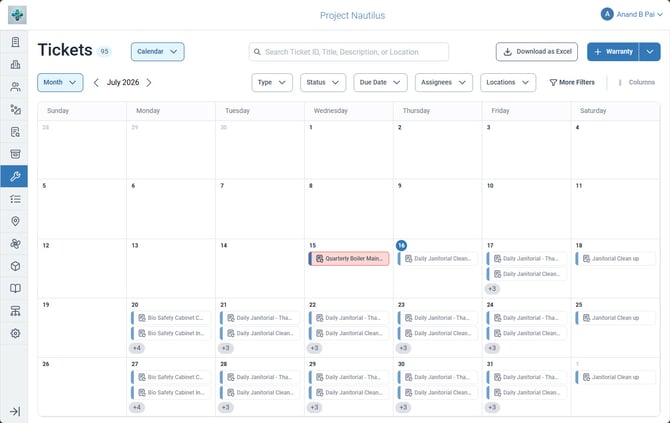
The Calendar View showing work orders displayed on a calendar by their due dates.
Search
Use the search bar at the top of the page to find work orders by Ticket ID, Title, Description, or Location. Search results update in real-time as you type.
Filters
The filter bar below the search provides quick-access filters for common fields:
-
Type - Filter by ticket type (Work Order, Warranty, Program, etc.).
-
Status - Filter by lifecycle status.
-
Due Date - Filter by due date range.
-
Assignees - Filter by assigned users.
-
Locations - Filter by facility locations.
-
Assets - Filter by associated assets.
-
Priority - Filter by priority level.
-
Parts - Filter by required parts.
-
Categories - Filter by classification.
-
Projects - Filter by associated project.
-
Root Causes - Filter by resolution root cause.
-
Programs - Filter by parent program.
-
Program Type - Filter by program classification.
Additional filters are available under the More Filters button, including Author, Reporters, Watchers, Facility Managers, Warranty Managers, and various date filters (Created, Started, Updated, Completed).
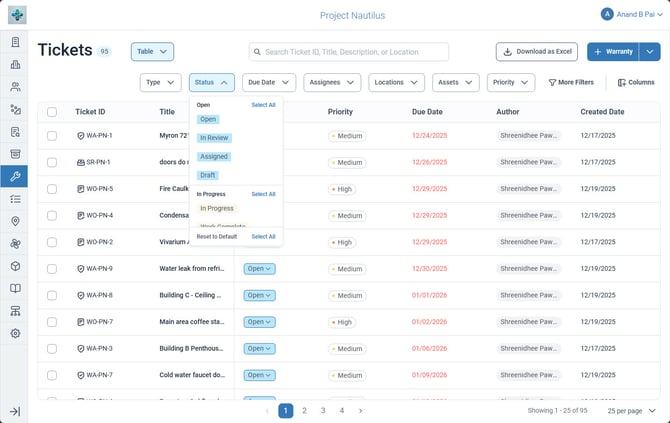
The Status filter dropdown showing available filter options. Select one or more values to filter work orders by status.
💡 TIP: Use the Reset Filters button to clear all active filters and return to the full unfiltered view.
Customize Columns
In Table View, you can customize which columns are displayed by clicking the Columns button at the far right of the filter bar. This allows you to:
-
Show or hide specific columns based on what's relevant to your workflow.
-
Reorder columns by dragging them to your preferred position.
-
Focus on the information that matters most to your role.
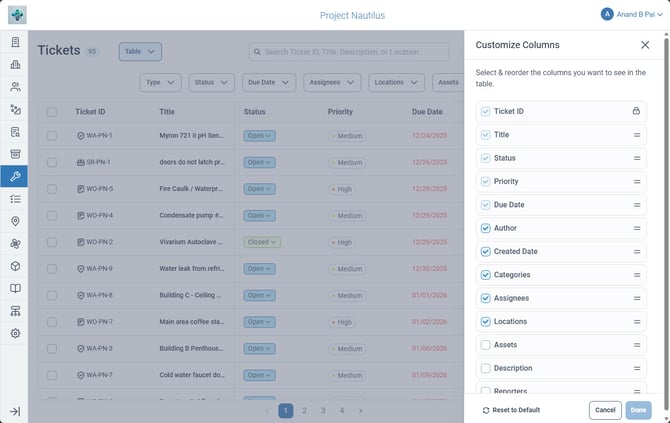
The Customize Columns panel showing available columns that can be toggled on or off in the Table View.
Sorting and Pagination
In Table View, click any column header to sort work orders by that field. Click again to toggle between ascending and descending order. A sort indicator appears next to the active sort column.
The table supports inline column filtering-use the text boxes below each column header to filter rows by specific values.
Pagination controls at the bottom of the table let you navigate between pages and adjust the number of rows displayed per page (default: 25 per page).