![branding-blue-tagline.svg]](https://info.vueops.com/hubfs/Imported%20images/branding-blue-tagline.svg)
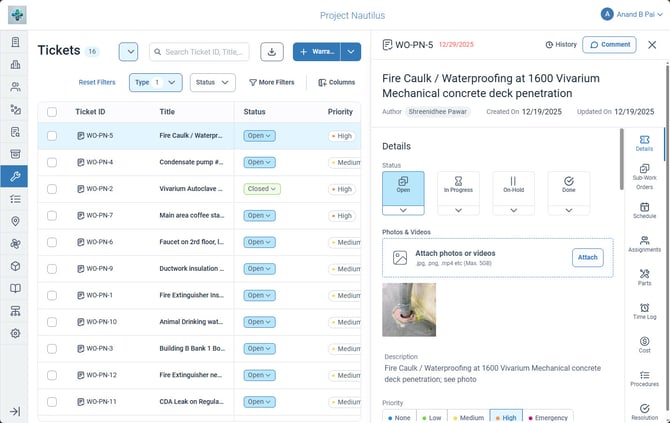
The work order detail panel showing the Details tab with status, priority, and other fields.
Details Tab
The Details tab contains the core information about the work order:
-
Status - The current lifecycle status (Open, In Progress, On-Hold, Done).
-
Program Type - The type of program this work order belongs to (e.g., Preventive Maintenance).
-
Program Code - A reference code linking to the parent program.
-
Regulatory Body - Any regulatory authority associated with the work.
-
Photos & Videos - Attach visual evidence (JPG, PNG, MP4, etc., up to 5GB).
-
Description - A detailed description of the work to be performed.
-
Priority - The urgency level (None, Low, Medium, High, Emergency).
-
Locations - The facility locations associated with this work order.
-
Location Description - Additional location context.
-
Assets - The equipment or assets this work order applies to.
-
Category - Classification categories for the work order.
-
Attachments - Attach documents (PDF, DOCX, XLS, PPT, up to 5GB).
Sub-Work Orders Tab
Manage child work orders created under this parent work order. See the Parent and Sub-Work Orders section for details.
Schedule Tab
Set timing and duration for the work order:
-
Due Date / Due Time - When the work order should be completed.
-
Start Date / Start Time - When the work is scheduled to begin.
-
Completion Date / Completion Time - When the work was actually completed.
-
Estimated Duration - How long the work is expected to take.
Assignments Tab
Manage who is involved with the work order:
-
Assigned To - Users responsible for completing the work.
-
Reporters - Users who reported or requested the work.
-
Watchers - Users who want to be notified of updates.
-
Facility Manager - The facility manager overseeing this work.
Parts Tab
Track the parts and materials needed to complete the work order.
Time Log Tab
Record time spent on the work order. Each entry includes:
-
User - Who performed the work.
-
Type - The type of work (e.g., Wrench, Overhead).
-
Date - When the work was performed.
-
Time Logged - Duration of work.
-
A total is displayed at the bottom summarizing all time entries.
Cost Tab
Track costs associated with the work order. Each entry includes:
-
Code - A cost code for accounting purposes.
-
Type - The type of cost (e.g., Labor, Materials).
-
Remark - Additional notes about the cost.
-
Cost - The dollar amount.
-
A total is displayed at the bottom summarizing all cost entries.
Procedures Tab
Attach standardized procedures to the work order. Procedures provide step-by-step instructions for completing the work. You can create new procedures or attach existing ones from your Procedures library.
Resolution Tab
Document how the work was resolved:
-
Root Cause - The underlying cause of the issue.
-
Contributing Factors - Additional factors that contributed to the issue.
-
Notes - Free-form notes about the resolution.