![branding-blue-tagline.svg]](https://info.vueops.com/hubfs/Imported%20images/branding-blue-tagline.svg)
Uploading Models
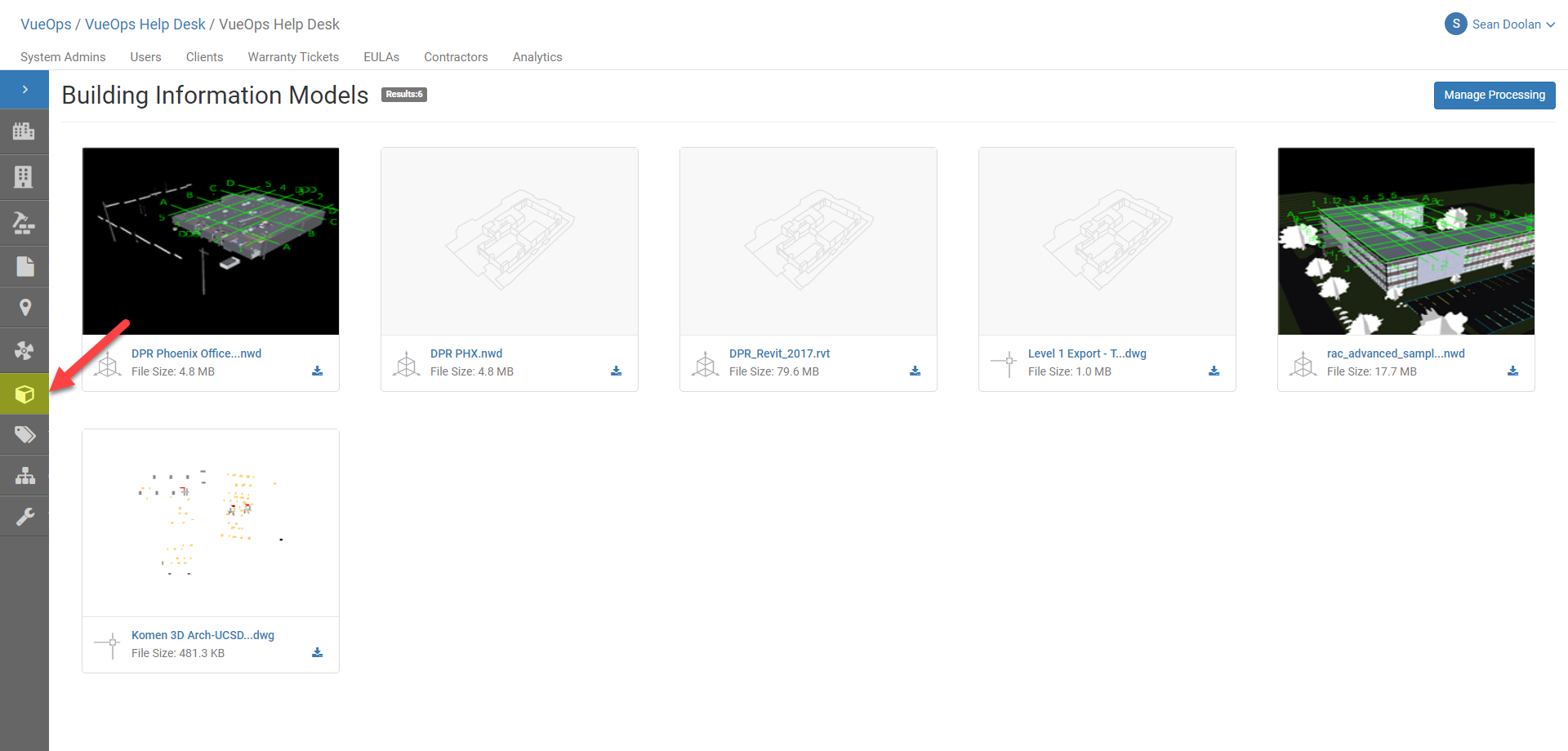
Model Processing
Before opening the models for the first time, model files must be processed for viewing and to display their asset data.
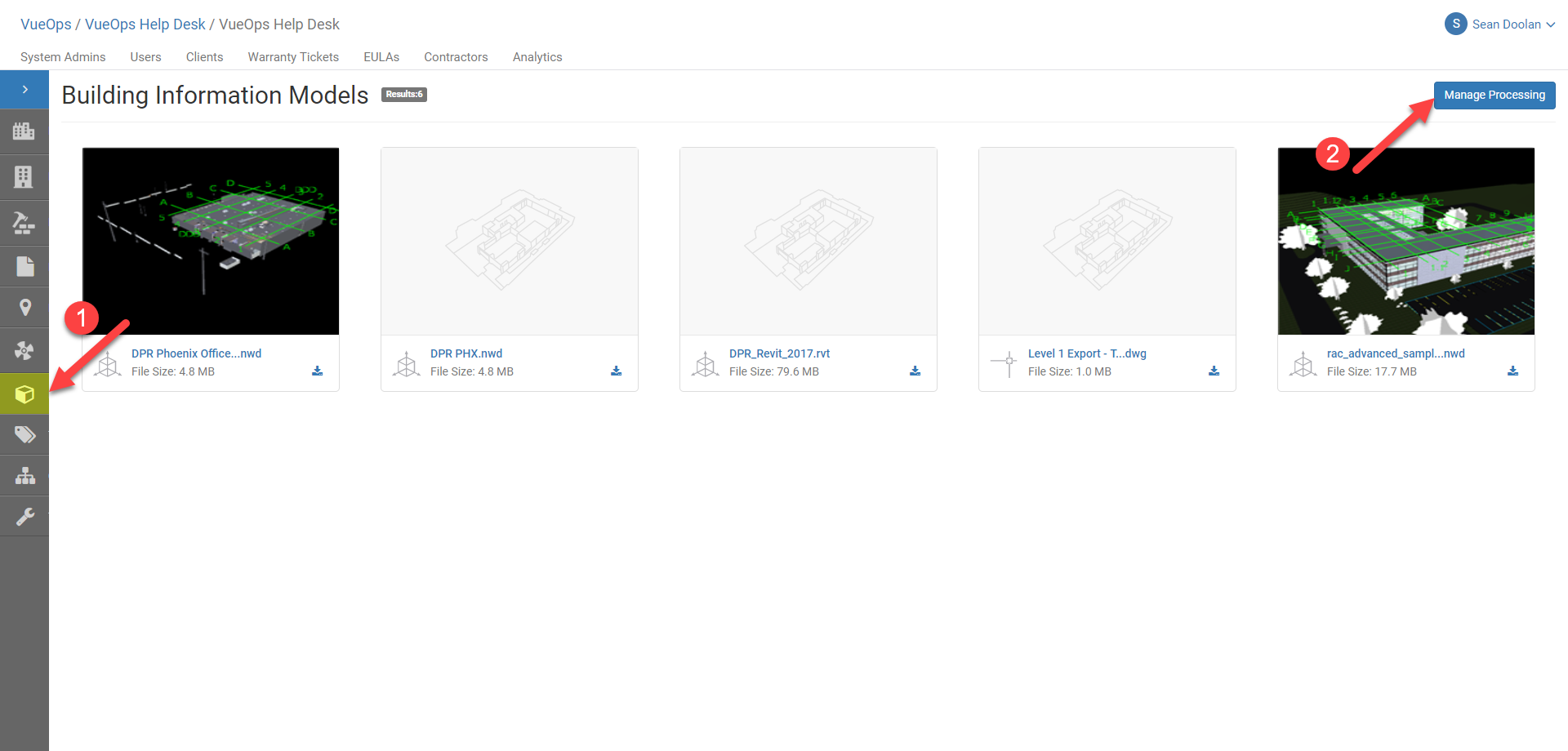
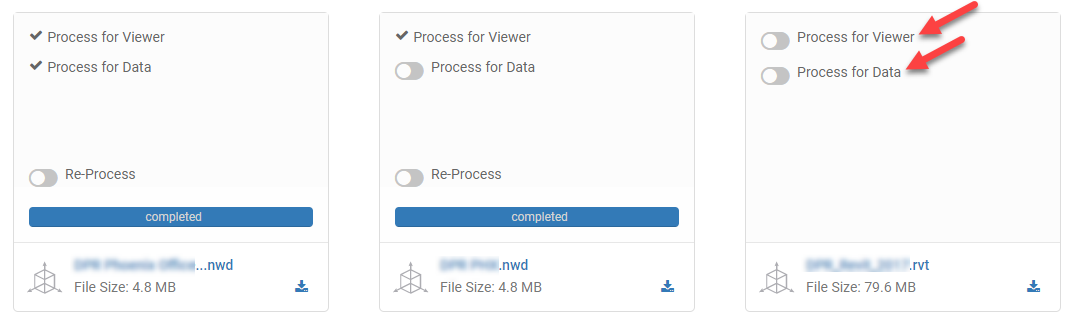

1) To cancel model processing, go to the Models page and click the "Manage Processing" button in the top right corner of the page. The processing options will appear.
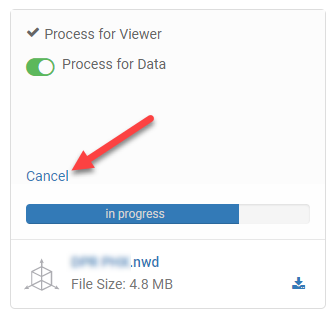
Any previously processed model objects and data will still be accessible by opening the model. Any new or previously unprocessed objects or data will not be displayed when opening the model file.
Reprocess Models
There are a few scenarios when a user may want to reprocess a model:
- There was an error in the processing step and model processing was not completed successfully.
- The user has updated the model file version in the document management system (DMS) and needs the latest model objects and data to be reflected in the VueOps model viewer.
1) To reprocess a model, go to the Models page and click the "Manage Processing" button in the top right corner of the page. The processing options will appear.
2) Left-click the "Re-Process" toggle on the model tile for the file you want to reprocess. Click "OK" on the top right corner of the page.
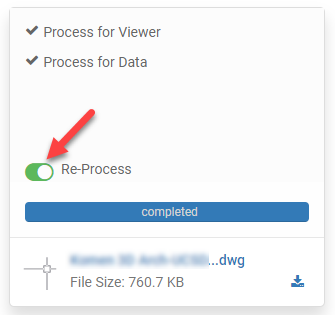
The model tile will show the message "In progress". When processing is complete, upon refreshing the page, the model tile will hide the processing status bar.